
AIVA writing assistant
Turn a rough draft into a text you’re ready to send.
Stuck on the wording... or wrote three paragraphs when one would do? AIVA, the AI assistant built into Project Broadcast, can fix spelling and grammar, shorten a long message or rephrase it, right in the message composer. You review every suggestion and decide whether to use it, so your texts still sound like you.
AIVA in use
Turn a long thank-you into a quick one, start to finish.
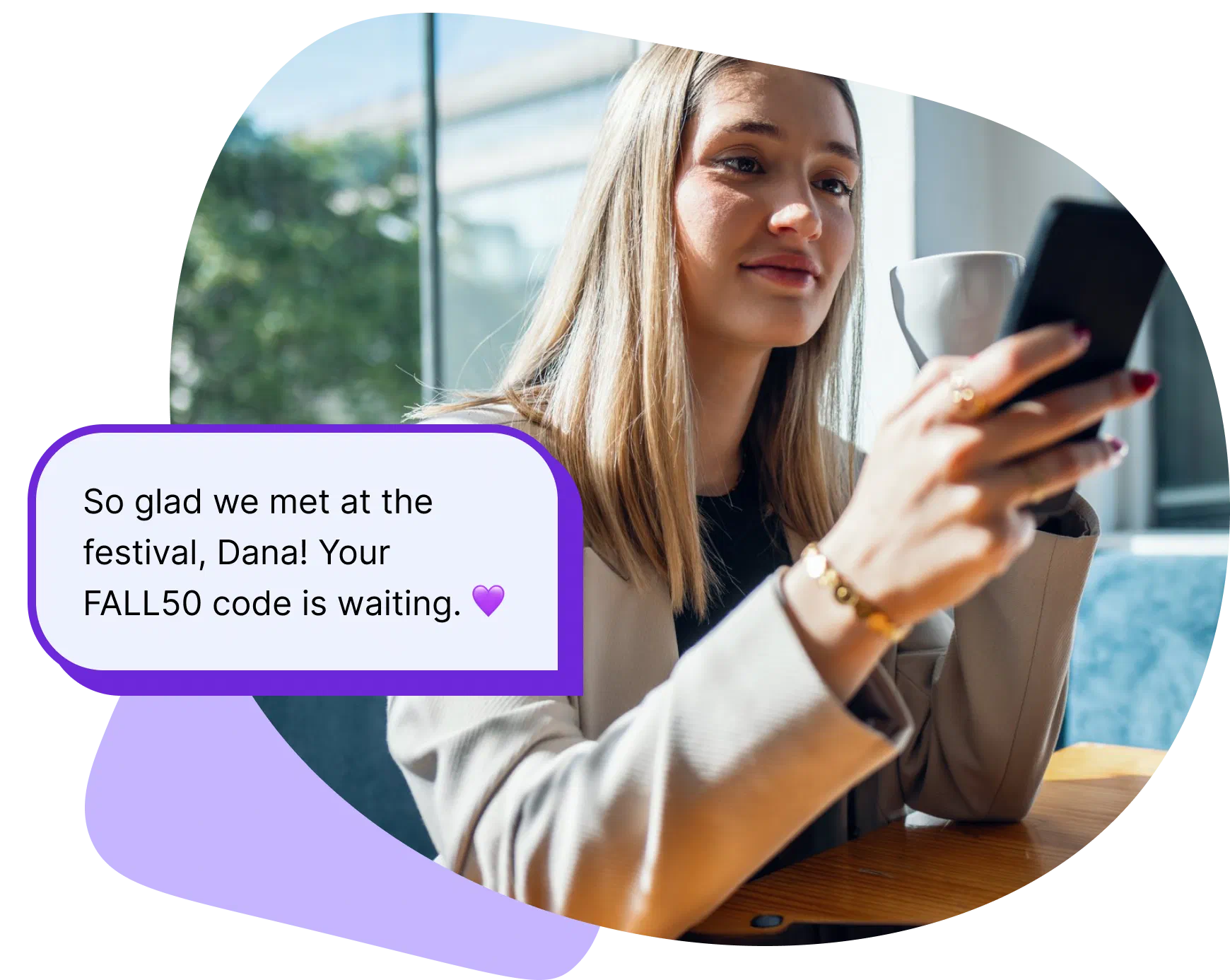
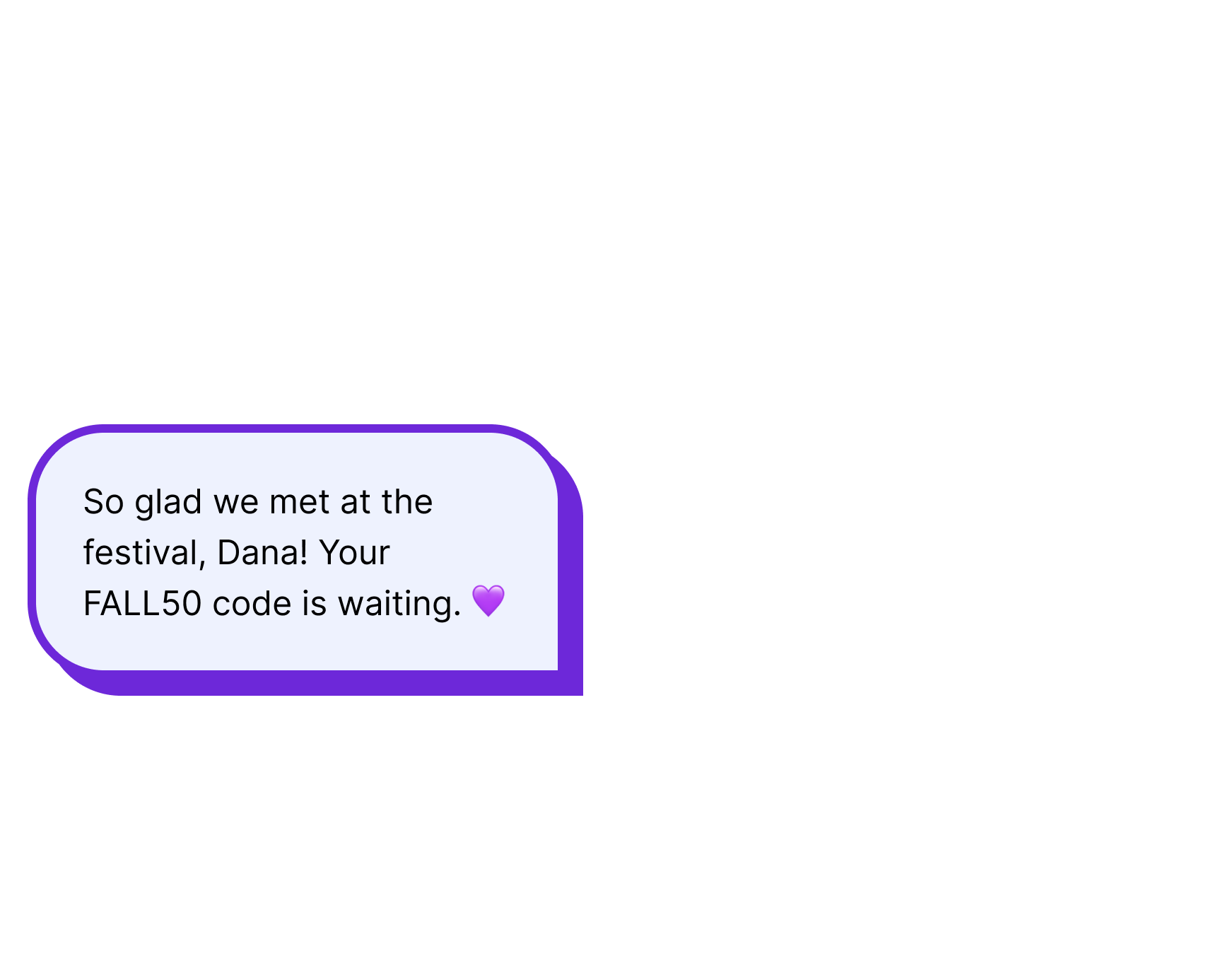
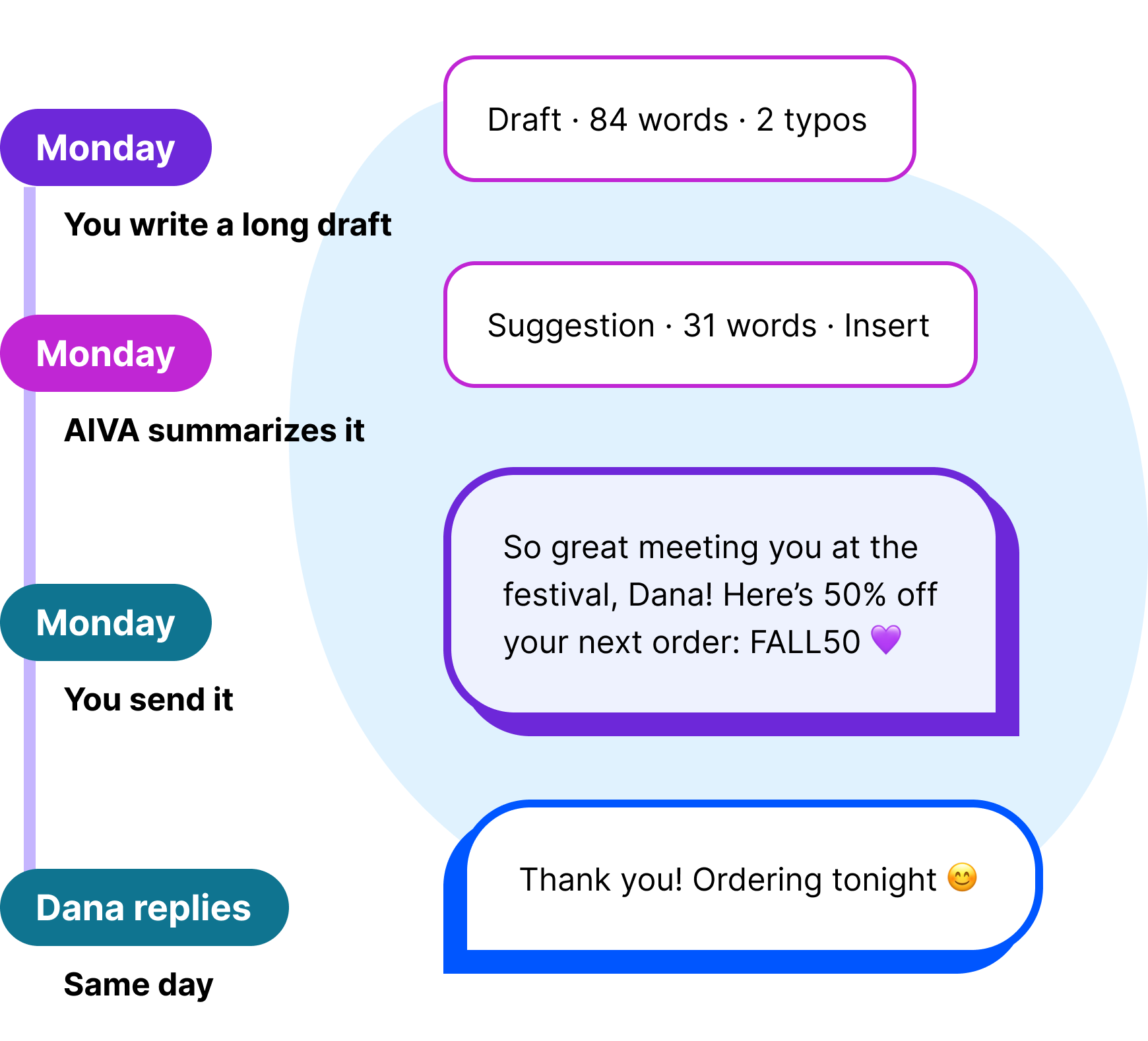
If writing texts takes you longer than it should, this saves the most time. Say you met a new customer at last weekend’s festival and wrote a thank-you that runs long and has a typo or two. Tap the AIVA icon, choose Revise Message and pick Summarize. AIVA tightens it to a few clear lines. You read it, tap Insert, add one personal touch and send it from Chat.
How it works
How AIVA’s writing help works.
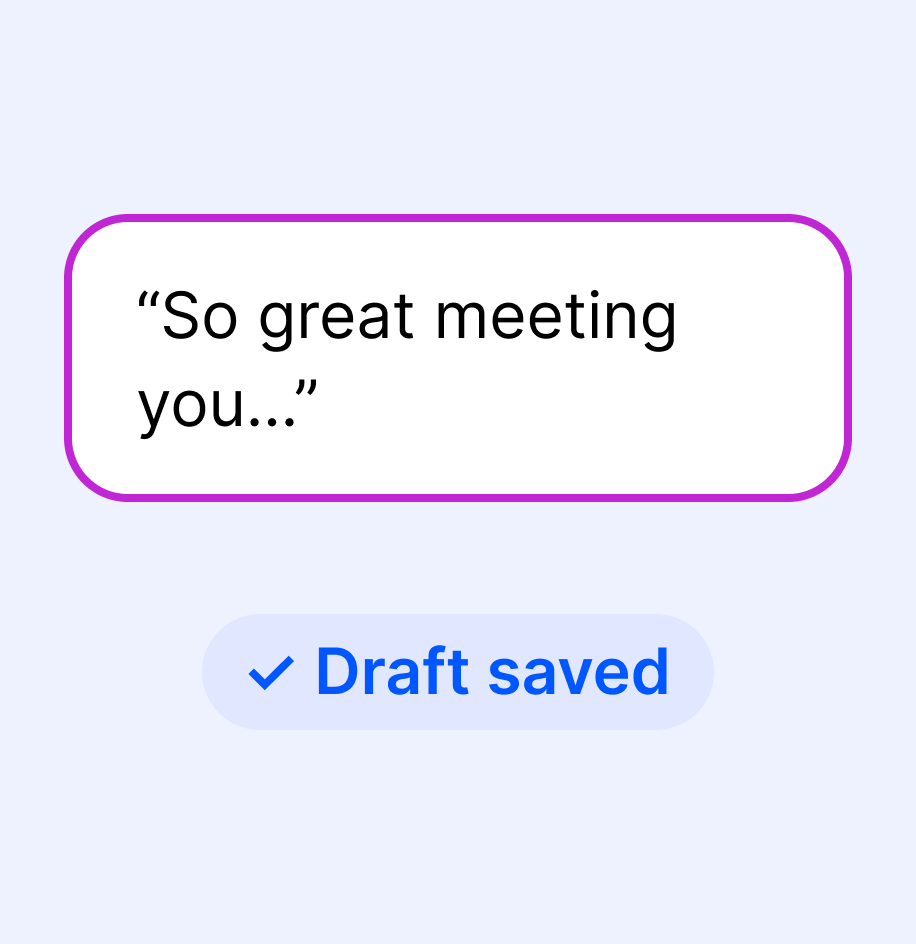
Write your draft.
Start typing anywhere you write messages: Chat, broadcasts, campaigns, keyword replies and templates.
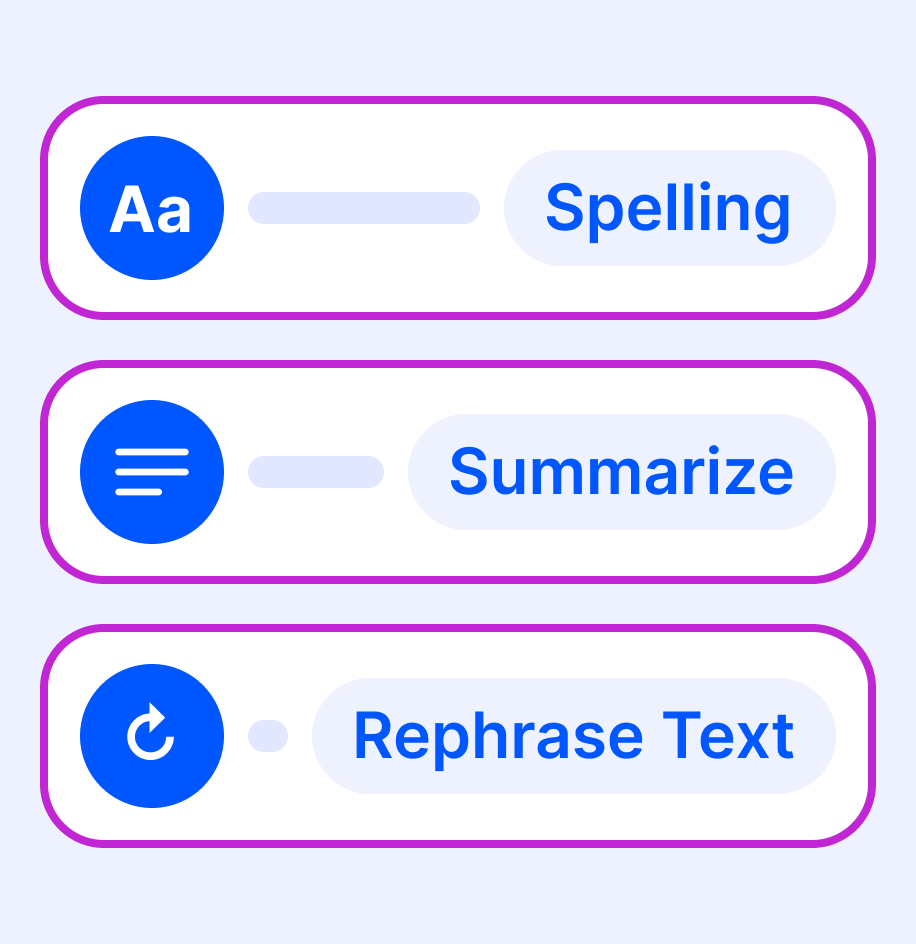
Pick what you need.
Tap the AIVA icon, choose Revise Message and pick from seven options, like Summarize, Rephrase Text, Make it formal or Clarify.
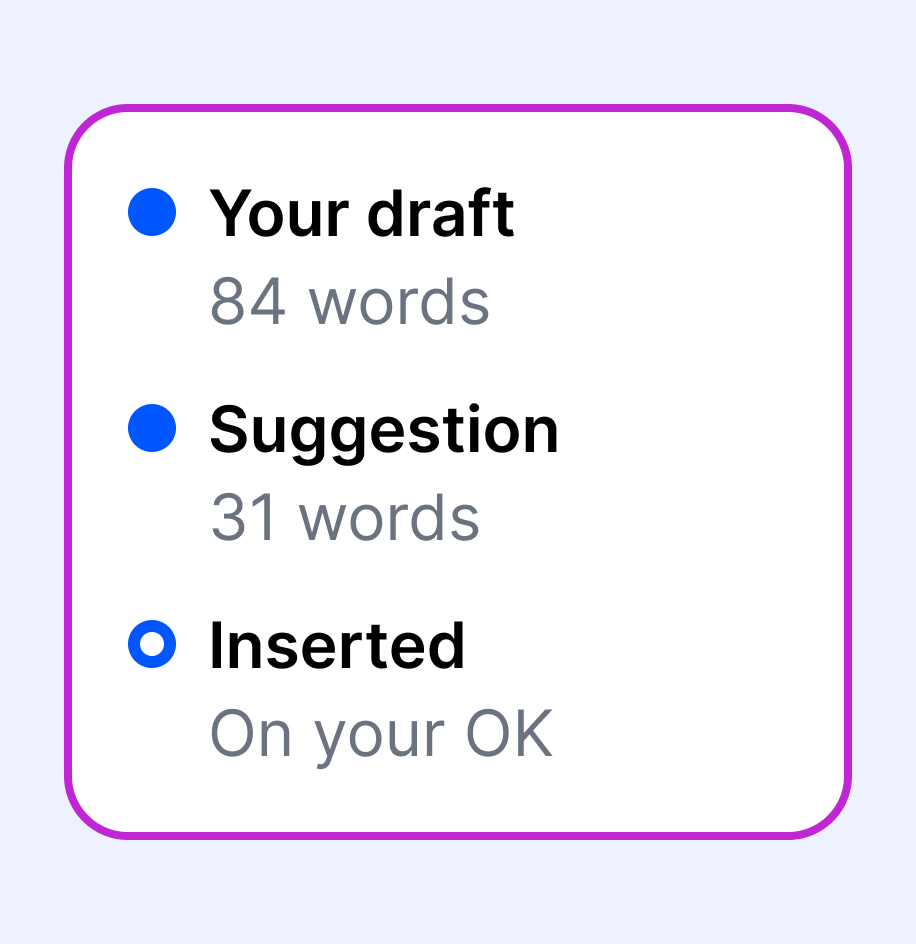
Review it first.
AIVA shows a suggestion next to your draft. Tap Insert to use it, or keep what you had. Nothing sends on its own.
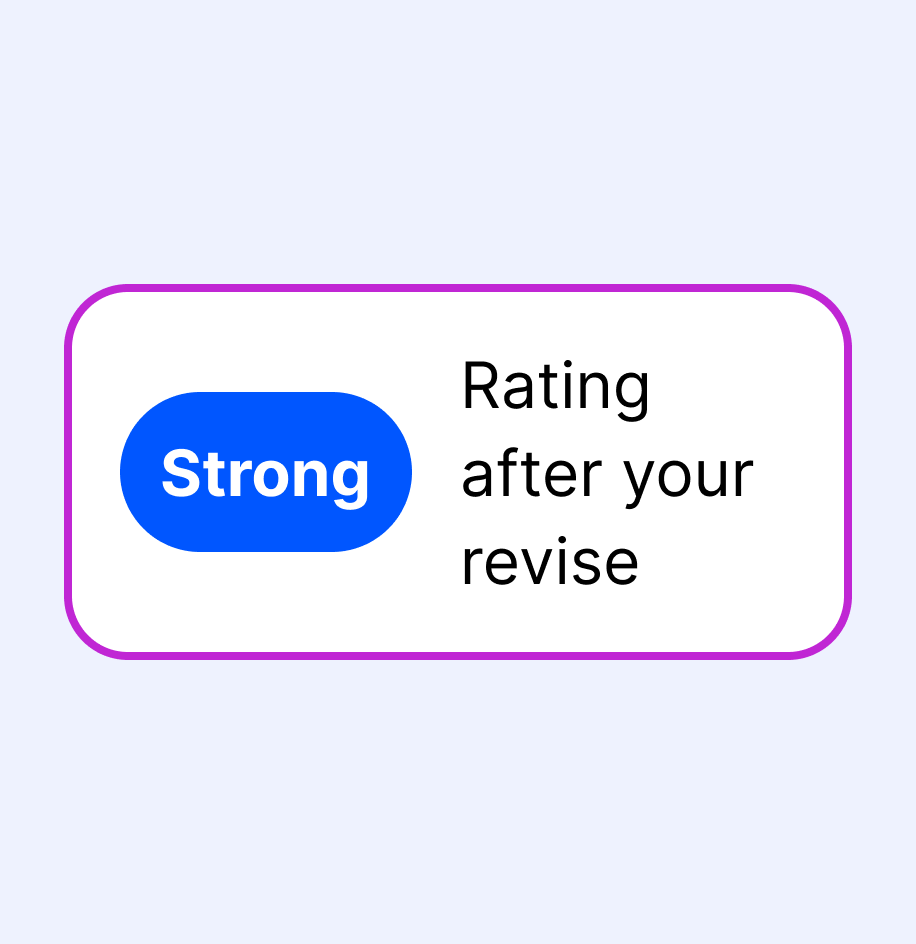
Check its strength.
The Message Strength rating updates with your changes, so you can see whether the new version is ready to go.
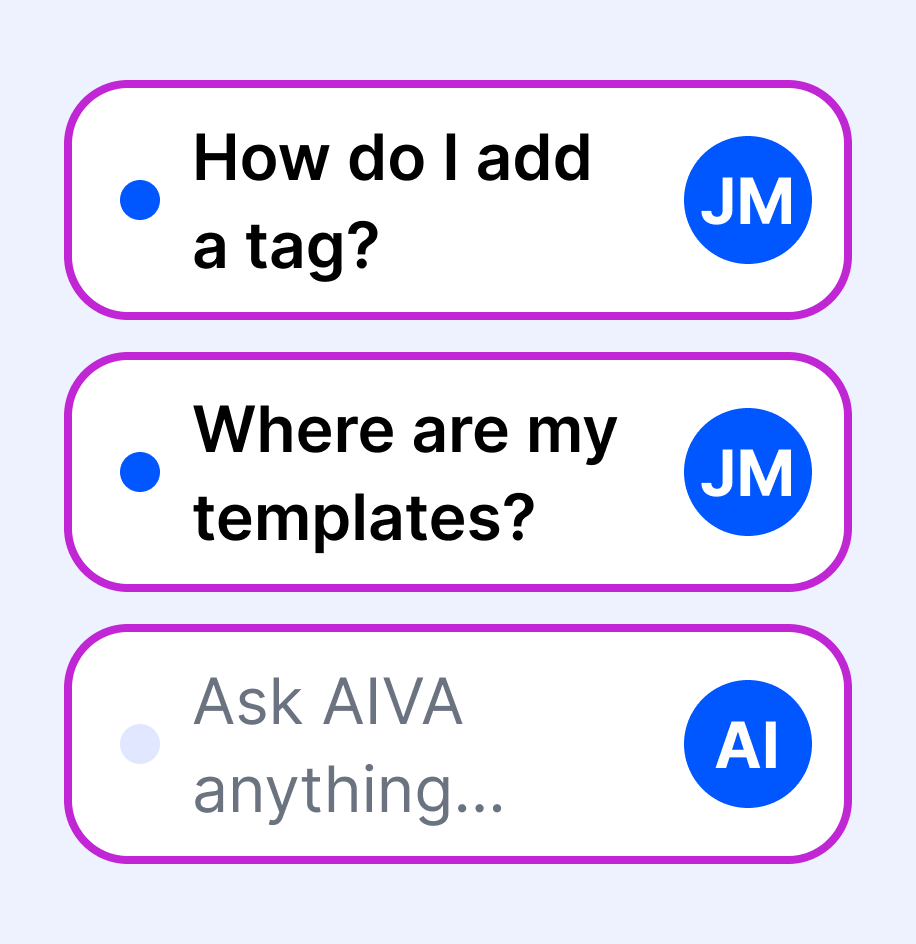
Get how-to help, too.
Stuck on a feature? Ask AIVA how something works, right inside Project Broadcast.
See it in Project Broadcast
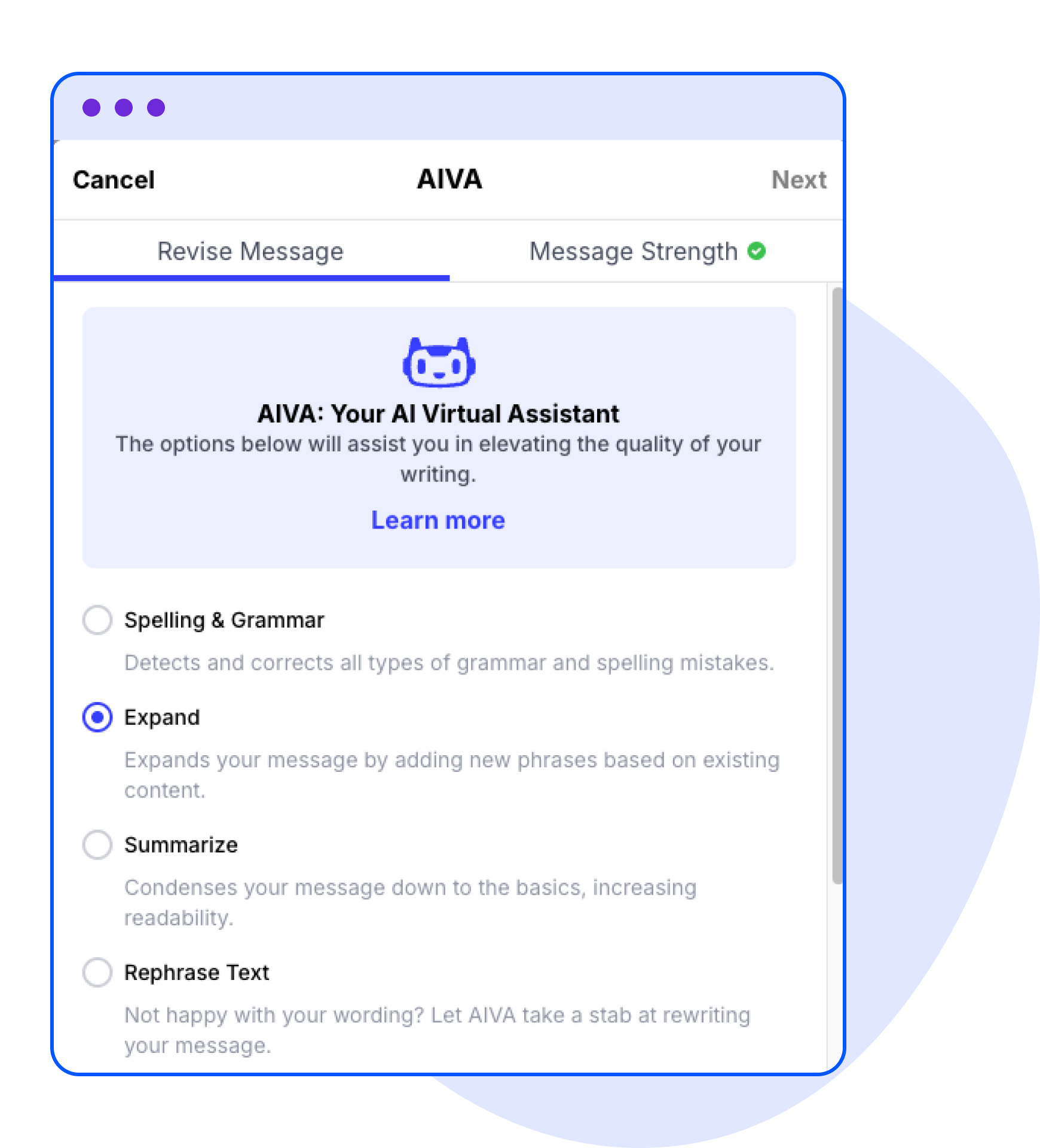
Pick how AIVA should help.
Fix spelling and grammar, expand a short note, summarize a long one, rephrase or clarify it, or make it friendlier or more formal. AIVA shows its suggestion, and you decide whether to insert it.
Ways to use it
Help for the messages you write most.
Use AIVA whenever a message isn’t quite right yet.
See plans
Long messages
Summarize event details or updates into a text people will actually read.
Great for
- Event details
- Product updates

Quick polish
Catch typos before a message goes to your whole list.
Great for
- Broadcasts
- Keyword replies

A fresh angle
Rephrase a reminder you send every week so it doesn’t feel copy-pasted.
Great for
- Weekly reminders
- Repeat promos

Messages you’ll reuse
Get a template right once, then use it for months.
Great for
- Intros
- Follow-ups
Before you use it
A few things to know first.
You stay in charge
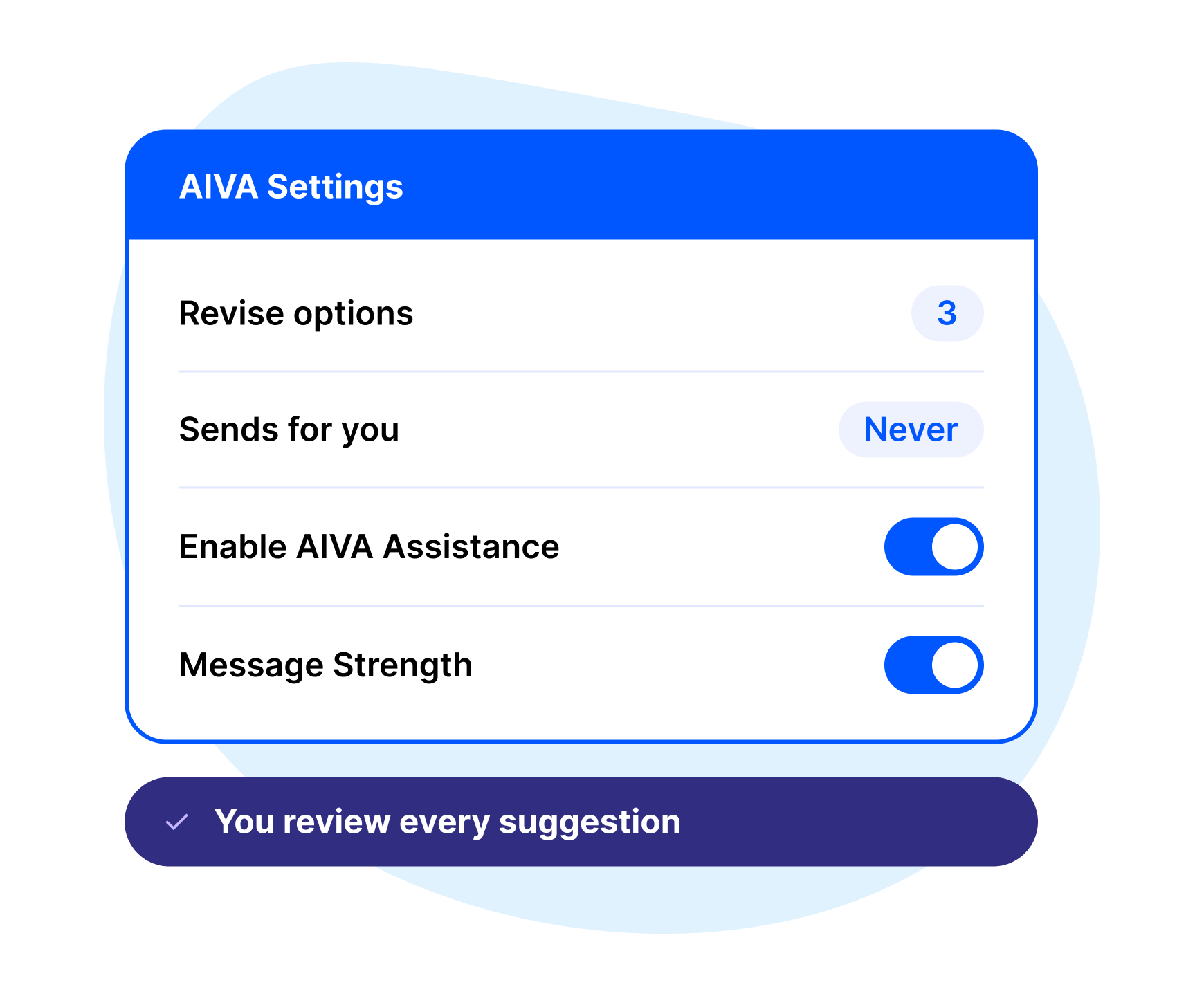
AIVA only suggests. Your draft changes when you tap Insert, and nothing sends until you send it.
Read it before you send
AI can get details wrong. Check names, dates, prices and links in the suggestion before it goes out.
Turn it on in AIVA settings
If you don’t see AIVA’s options, check Enable AIVA Assistance in AIVA settings.
Better together
Write it, then put it to work.
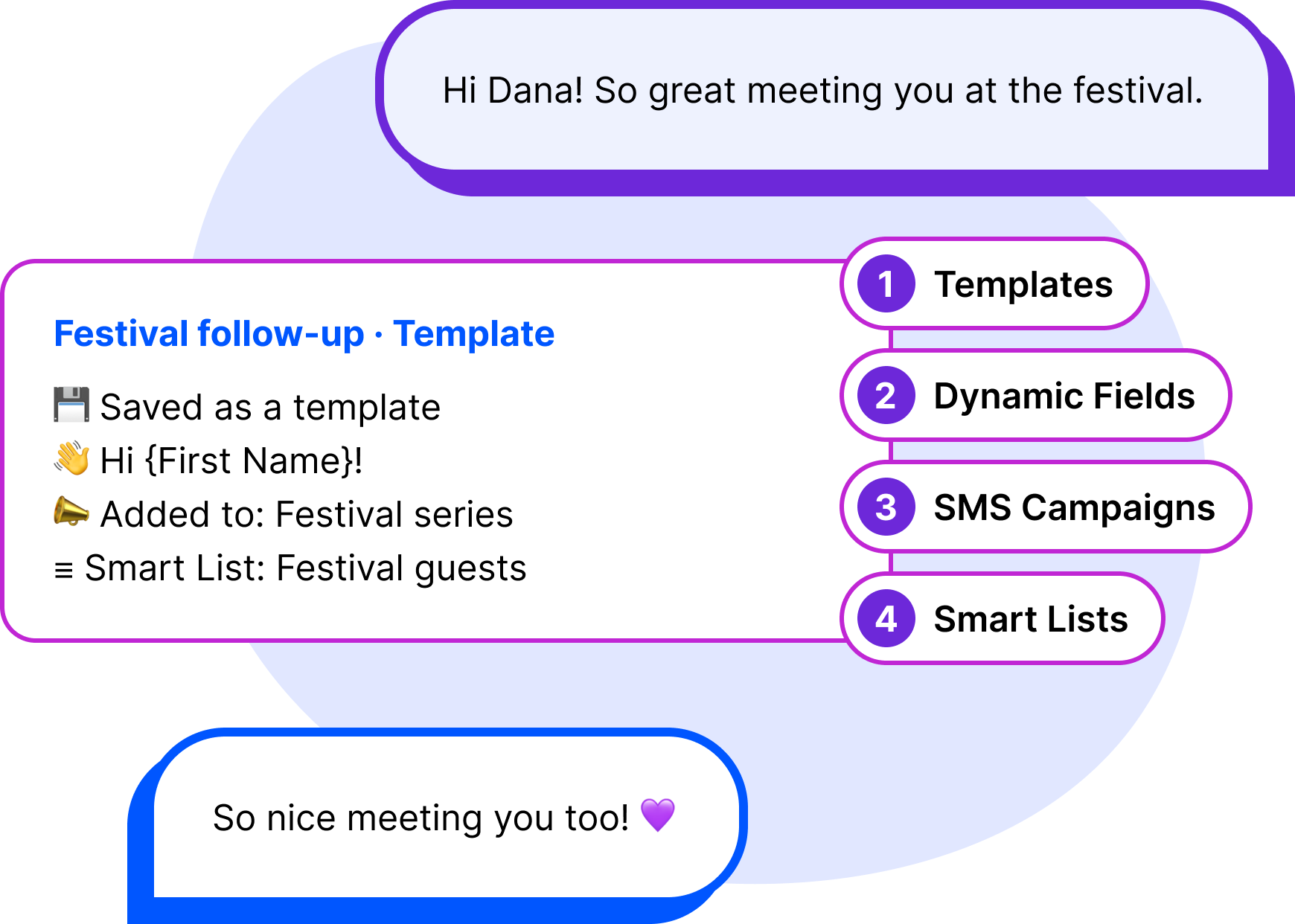
A polished message is only the start. Put it to work with these.
Save the ones that work.
Turn a message you like into a template you can reuse anywhere.
Say their name.
Add Dynamic Fields like first name, so the polished version still feels personal.
Put it on a schedule.
Drop the polished version into SMS Campaigns, so it goes out on its own.
Let AIVA build your lists, too.
Describe a group in your own words, and AIVA writes the rules for a Smart List.
From PB Data Labs
Shorter texts get more replies.
We looked at more than 170 million messages sent through Project Broadcast in 2025. For broadcasts, campaigns and other automated texts, messages over 160 characters got fewer replies and more opt-outs.
Read the findings
Common questions about AIVA’s writing help
Will my texts sound like a robot?
Not if you don’t want them to. You choose whether to use each suggestion, and you can edit it before you send.
Where can I use it?
Anywhere you see the message composer, including Chat, templates, campaigns, keyword replies and scheduled broadcasts.
Does AIVA send messages for me?
No. AIVA shows a suggestion, and you choose whether to insert it. Inserting replaces your draft but doesn’t send it.


Try AIVA on your next text
Your words, cleaned up in a tap.
Open the message you’ve been putting off, pick Summarize or Spelling & Grammar, and send the version you like.