
Back Office
Turn your company’s back-office emails into follow-ups.
Order confirmations, new party guests, shipping notices, a customer asking a question… your company emails you all day, and each one is a reason to reach out. Back Office reads the emails you forward, pulls out the names, orders and details, and turns each one into a notification in Project Broadcast. Turn on actions, and it can tag the customer, apply a keyword or start a campaign for you.
Back Office in use
Follow up on a shipped order, start to finish.
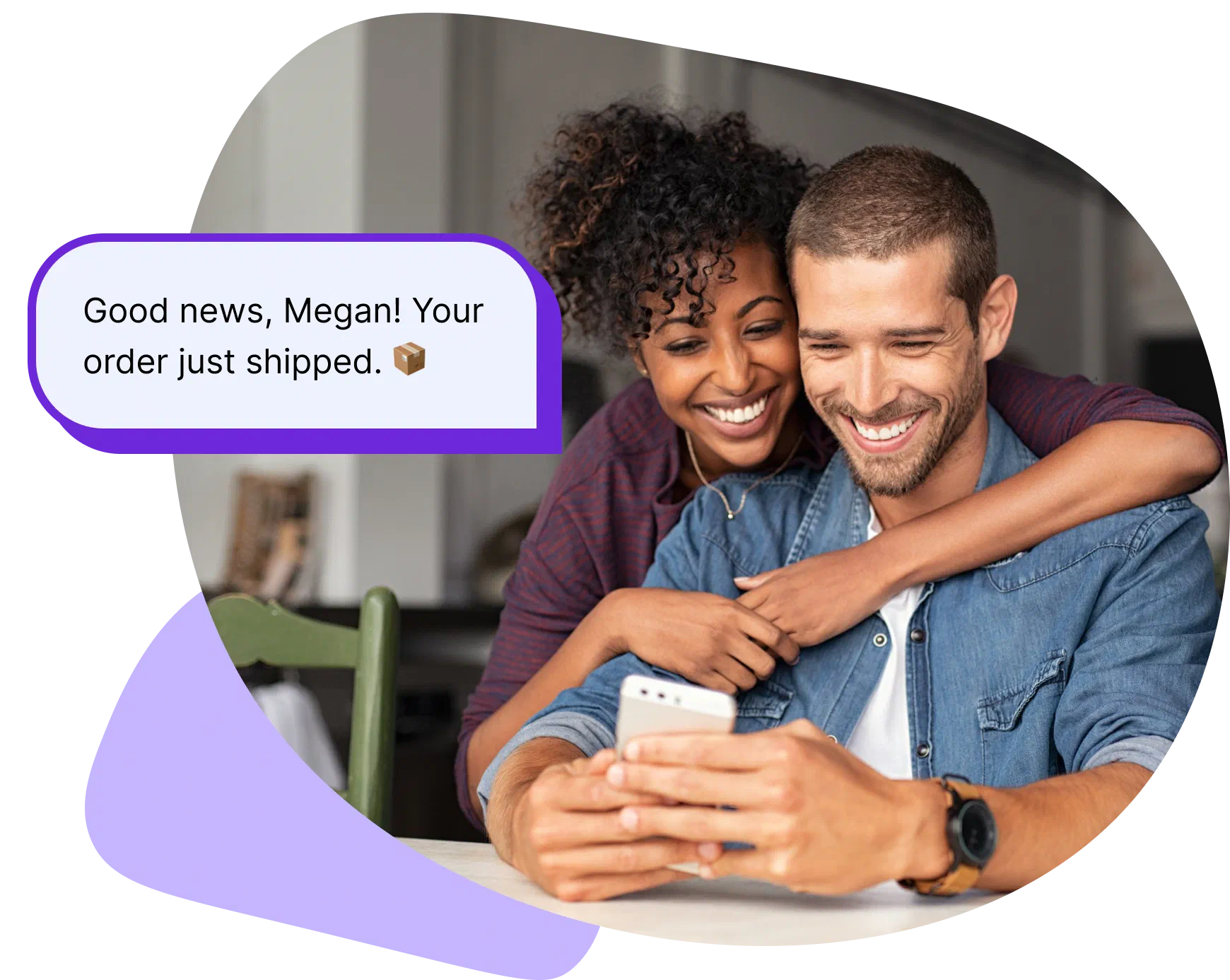
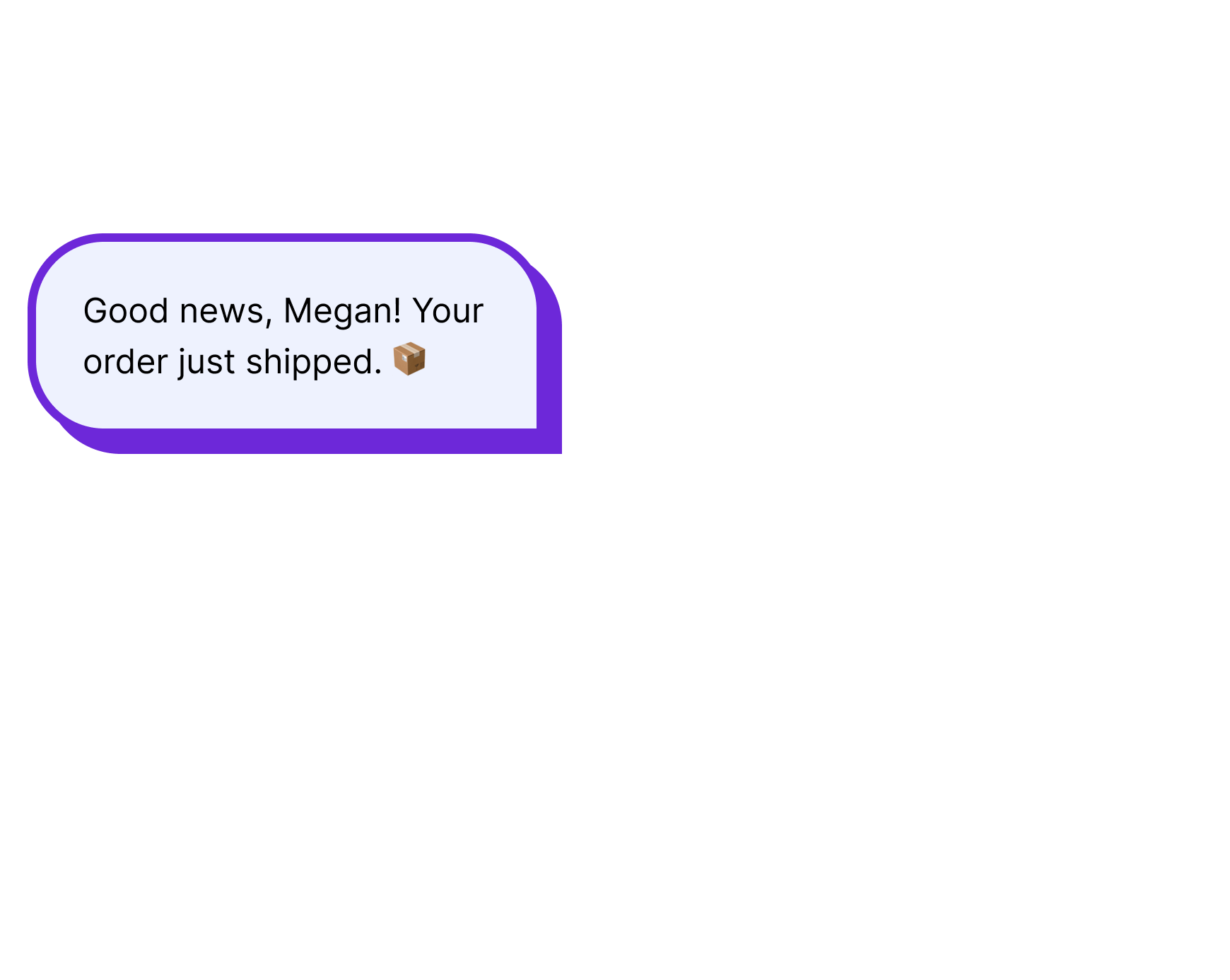
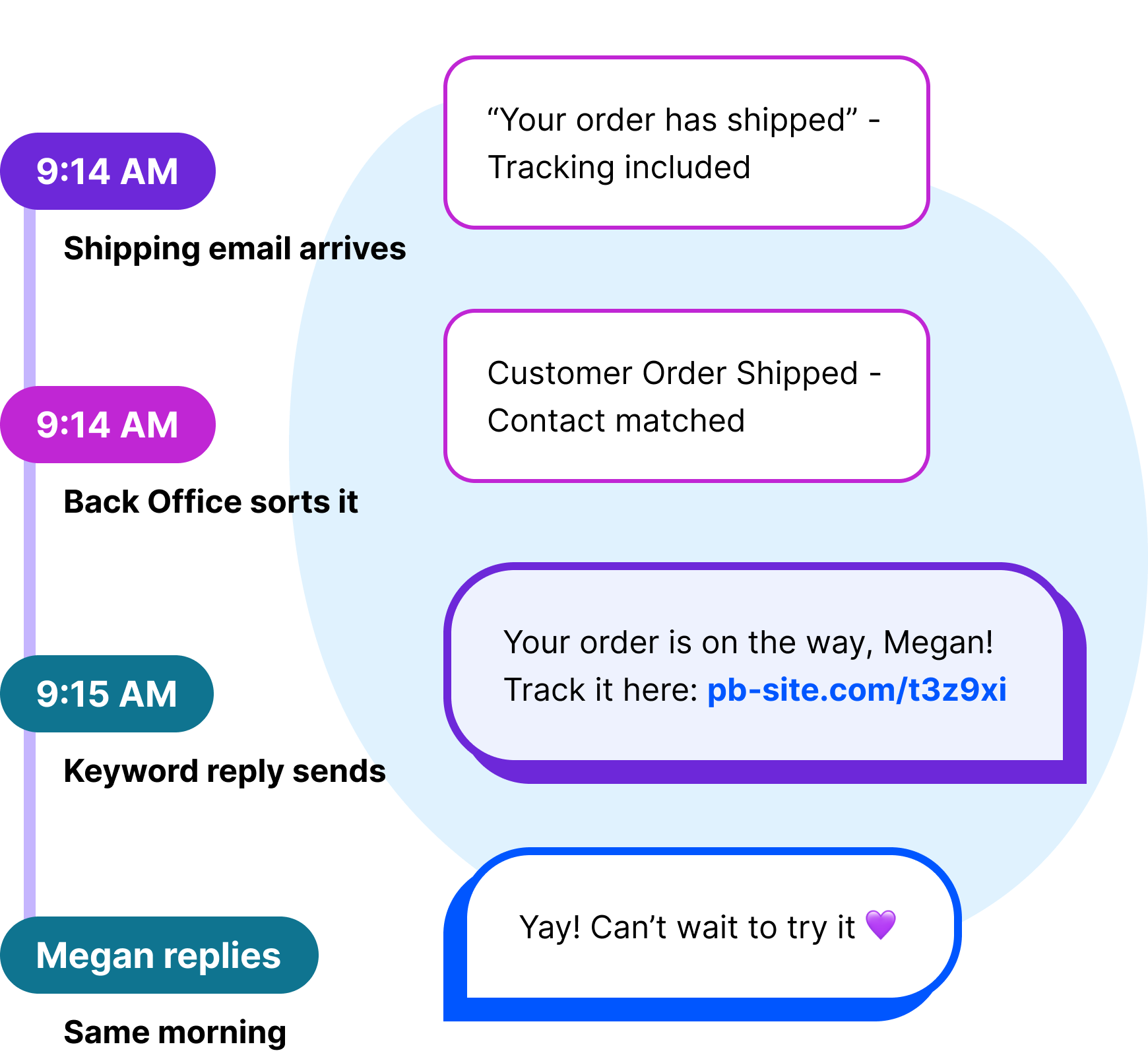
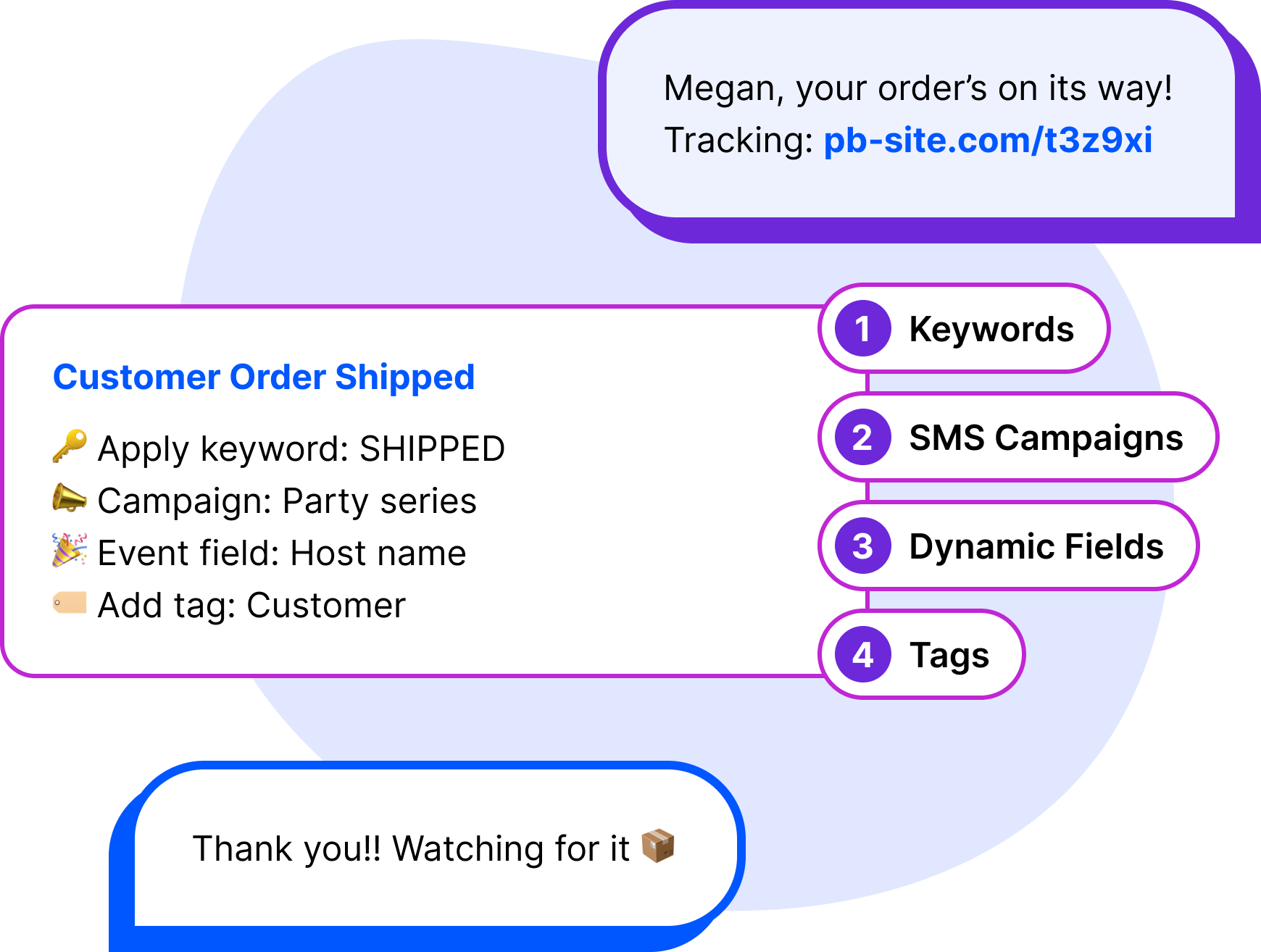
If you sell through a direct-sales company, your next follow-up is probably sitting in your email. Say a customer’s order ships. The shipping email forwards to Project Broadcast, and Back Office recognizes it as a shipped order, matches the customer by phone or email and shows the tracking details. Your Apply Keyword action sends her a “your order is on the way” text, and a push notification lets you know in case you want to add a personal note.
How it works
How Back Office works.
Turn it on.
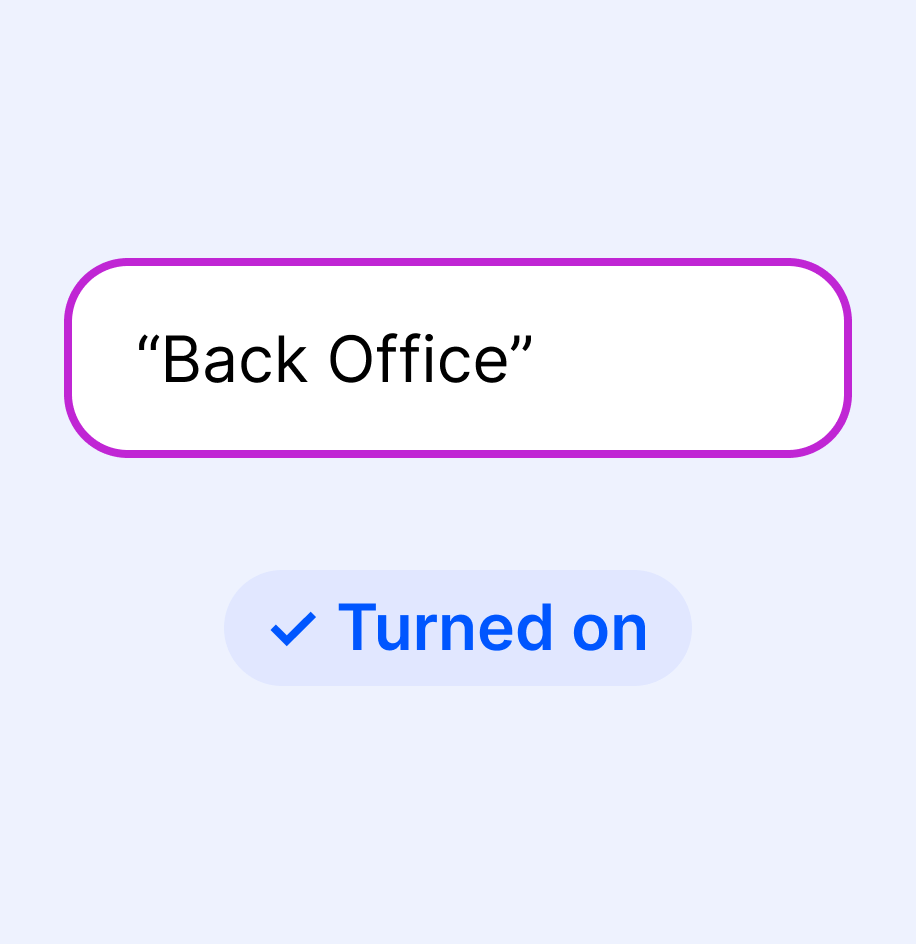
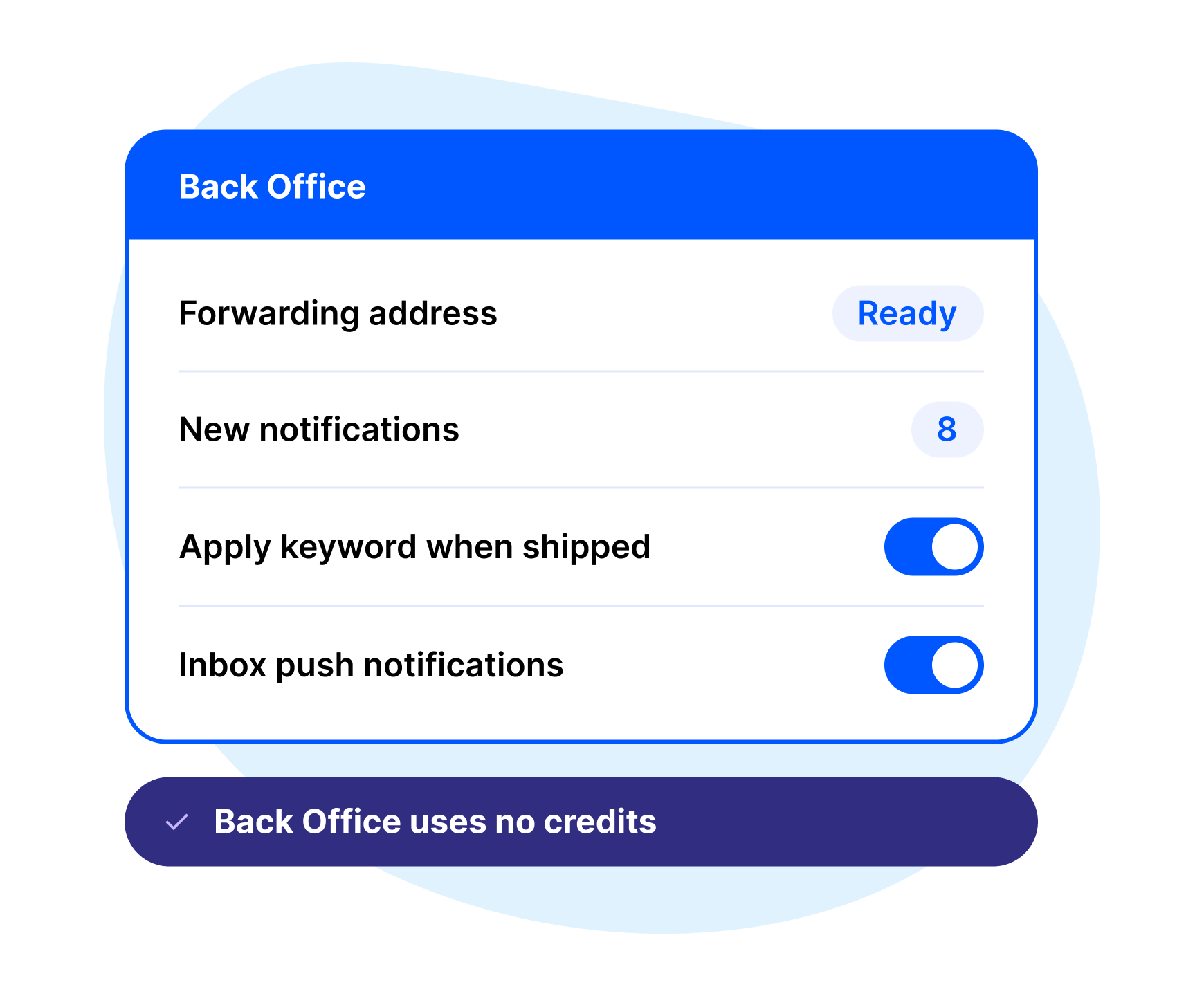
Every plan includes Back Office. Turn it on in Settings. You get your own forwarding address, and it never changes.
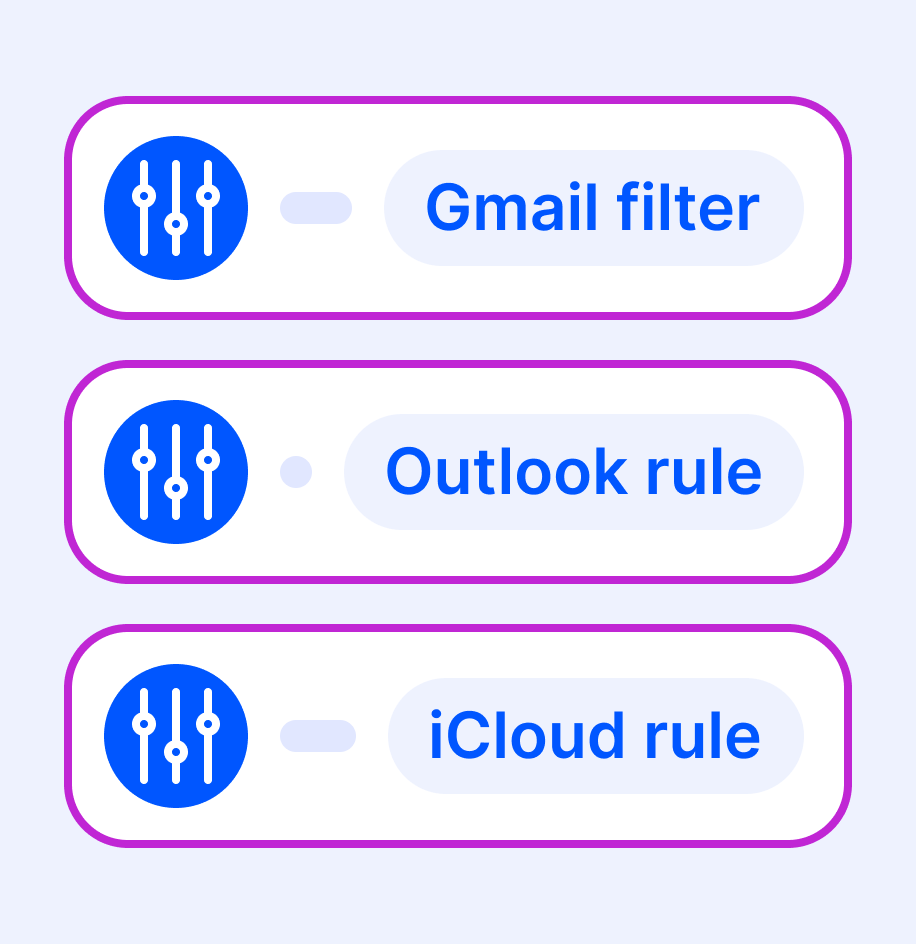
Forward your emails.
Set up a filter in Gmail, Outlook, Yahoo or iCloud that forwards your company’s notification emails to that address.
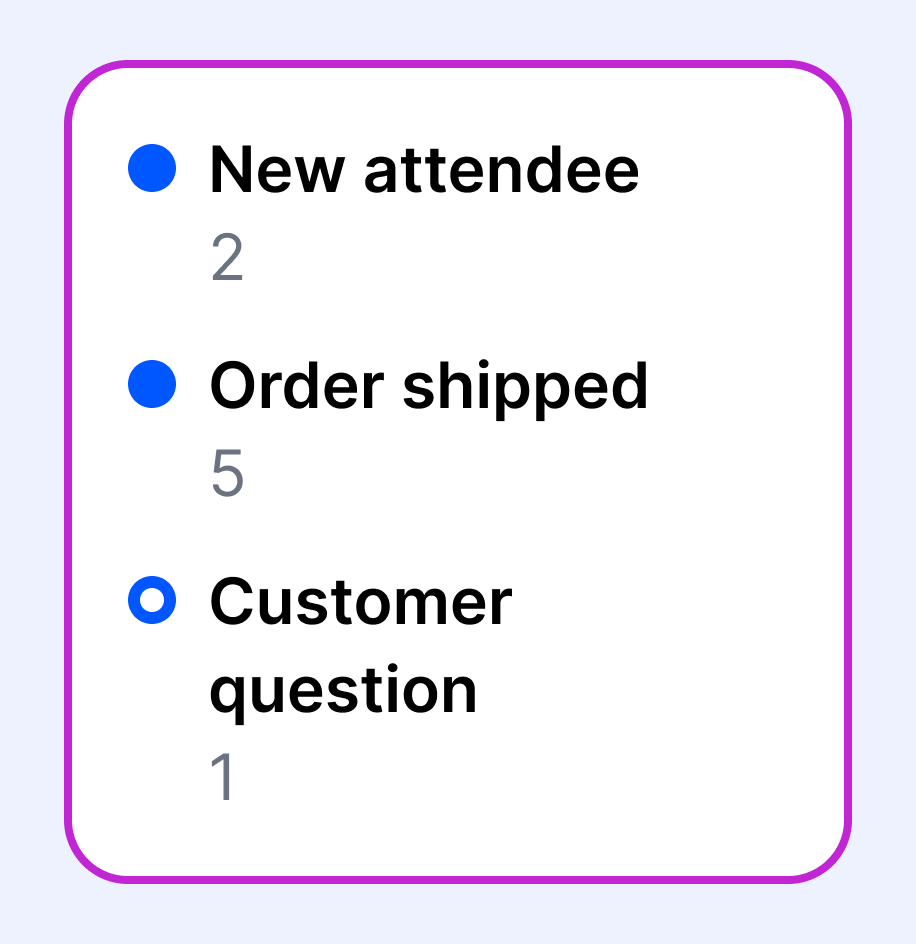
See them sorted.
Each email becomes a notification, like a new event attendee, an order update or a customer question, with names, phone numbers and order details pulled out.
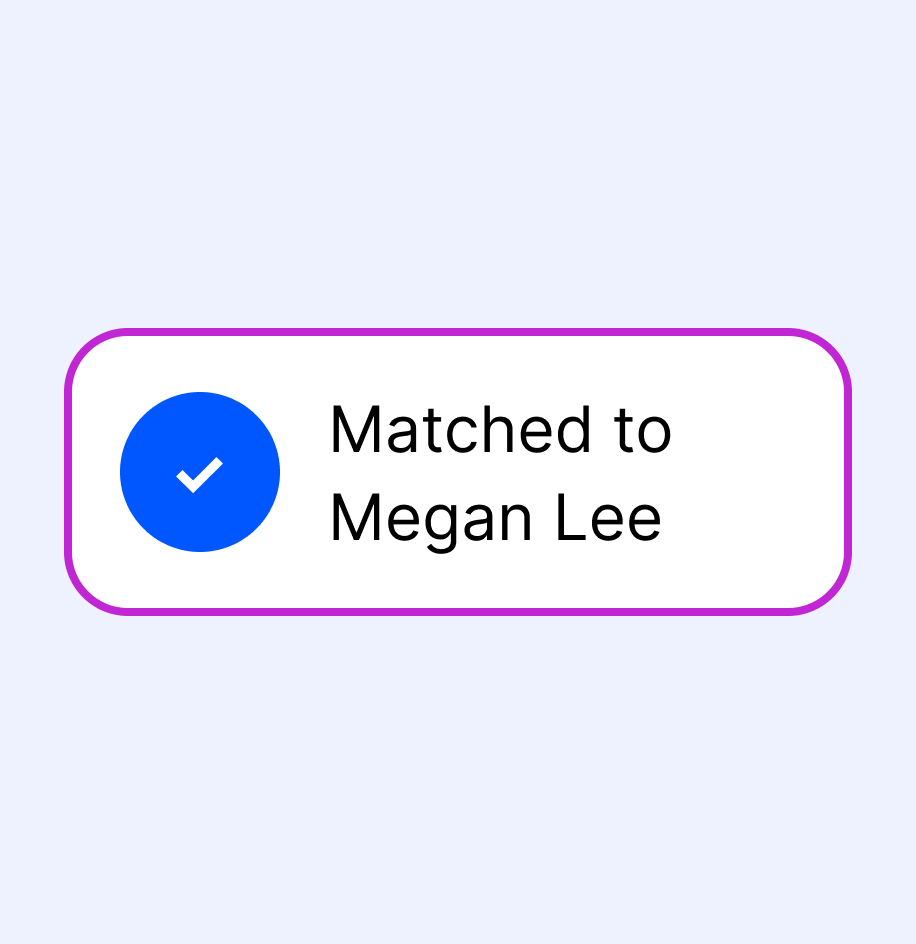
Match the contact.
When Back Office finds a phone number or email, it links the notification to that contact.
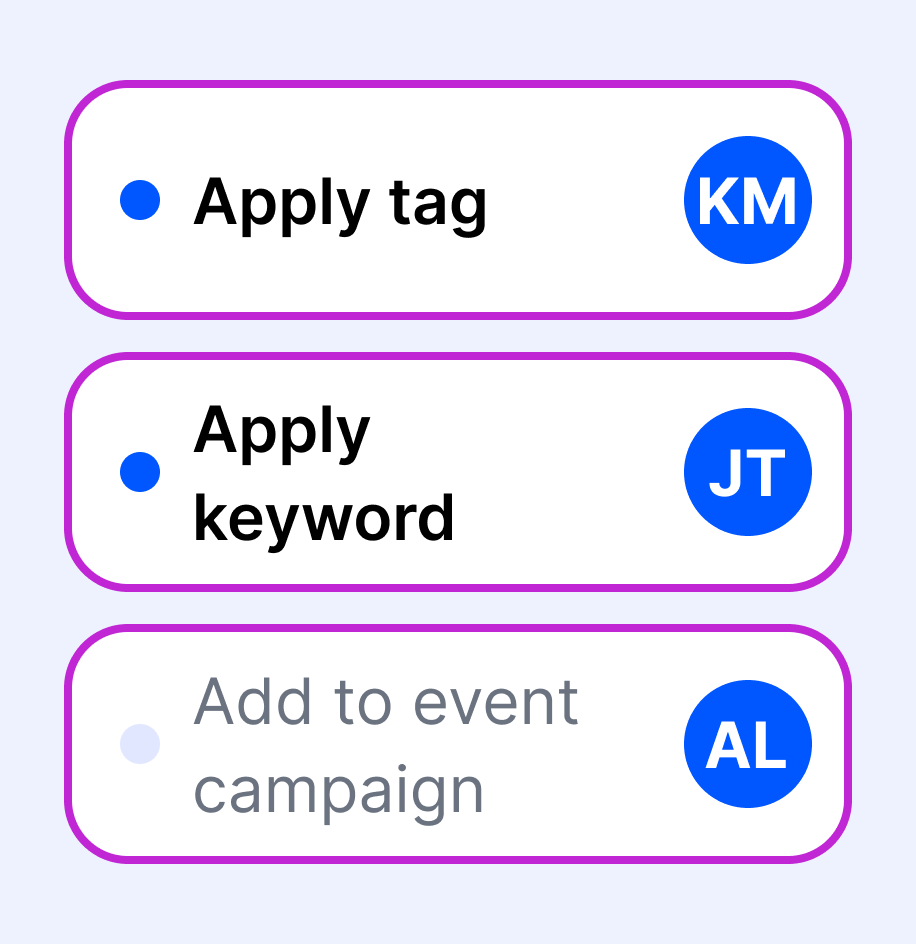
Turn on actions.
Apply a tag, apply a keyword, create or update the contact, or add them to an event campaign, all without lifting a finger.
See it in Project Broadcast
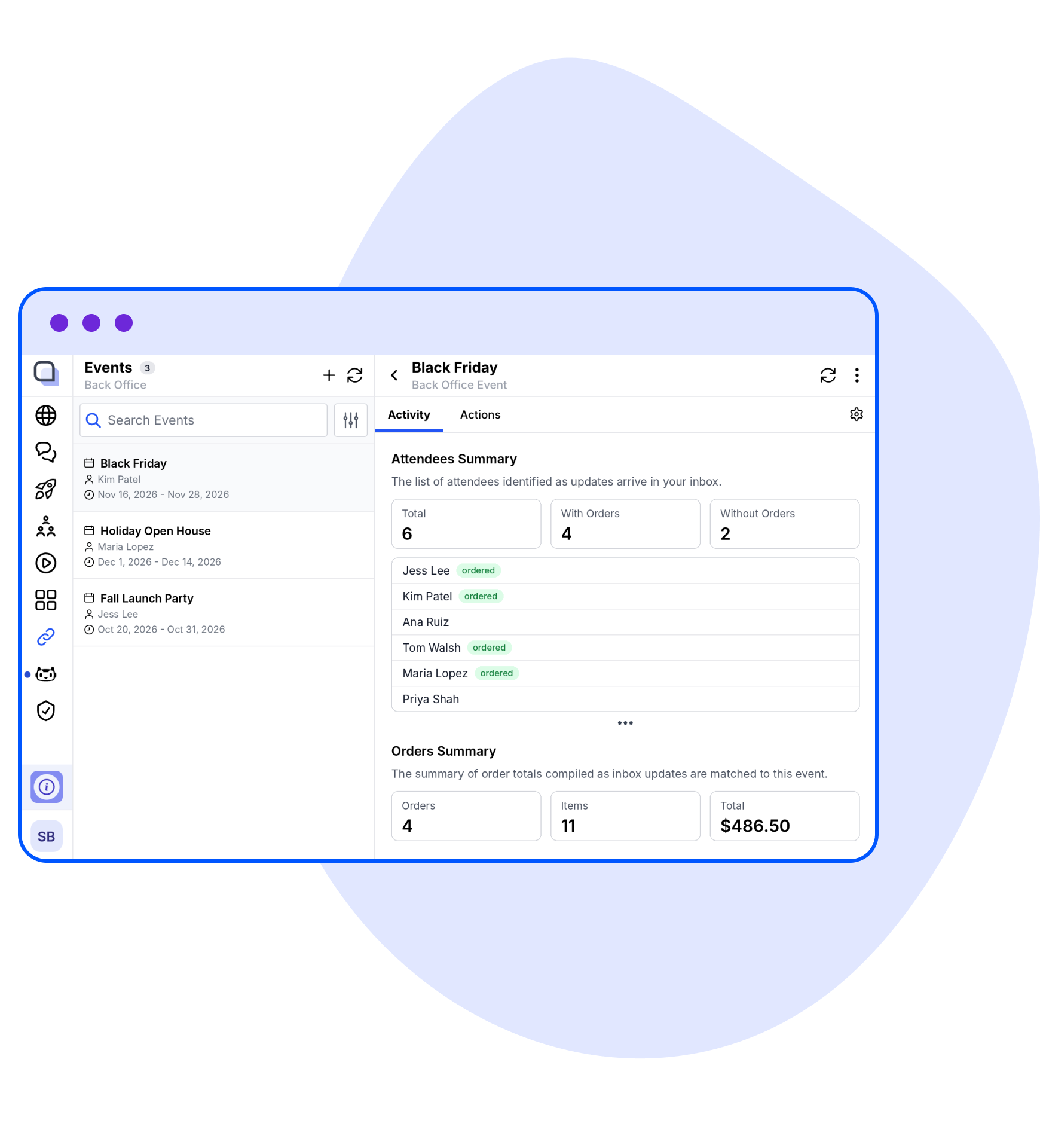
Every party, in one dashboard.
Attendees, who’s ordered and the sales total add up on their own as your company’s emails come in. Copy the names of guests who haven’t ordered yet, and your follow-up list is done.
Ways to use it
Every company email is a reason to reach out.
Pick the notifications you get most, and decide what should happen next.
See plans
Customer orders
Know when an order is confirmed, ships or arrives.
Great for
- Shipping updates
- Delivery check-ins

Events and parties
Create an event, and its dashboard adds up attendees, orders and the sales total as emails arrive.
Great for
- Launch parties
- Host follow-ups

Customer questions
Get the customer’s message with suggested follow-ups, then reply in Chat.
Great for
- Product questions
- Order issues

New team members
Hear the moment someone joins your team.
Great for
- Welcome series
- Team onboarding
Before you use it
A few things to know first.
Built for company notification emails
Back Office recognizes specific email types, like orders, events, new consultants and customer requests. Emails that don’t match a known pattern may not create a notification.
Confirm your forwarding
Most email providers send a confirmation before forwarding starts. It shows up in Back Office, so complete it there first.
Back Office doesn’t use credits
Receiving and sorting emails and running actions use no credits. What an action sends, like a keyword reply or a campaign message, uses credits as usual.
Better together
The moment comes in. These turn it into a conversation.
Back Office tells you when something happens. These help you respond.
Reply the moment it happens.
Apply a keyword, and its reply goes out as soon as an order ships.
Run a whole event series.
Add guests to an event campaign in SMS Campaigns, timed to the party date.
Fill in the event details.
Event Dynamic Fields drop in the host’s name, the date or the sales total.
Keep customers organized.
Add a tag for each kind of order or event.
Common questions about Back Office
Does this replace my company’s back office?
No. Keep using your company’s back office for orders, product details and training. Back Office in Project Broadcast reads the emails it sends you, so you can follow up by text.
Which emails does it understand?
Order updates (confirmed, ready to ship, shipped and delivered), event attendees and orders, new consultants and customer requests.
Do I have to forward all my email?
No. Set a filter that forwards only your company’s notification emails.
Can I see everything for one party in one place?
Yes. Create an event with its name, host and dates, and Back Office matches attendees and orders to it as emails arrive. Its dashboard shows who ordered, who hasn’t and the sales total, and you can copy the names of guests without orders for a follow-up.


Turn on Back Office
Let your inbox start the follow-up.
Turn on Back Office, forward your company’s notification emails and pick one action to run for you.