Blog
How to Set Up Text Message Appointment Reminders in Project Broadcast
Managing appointments efficiently is crucial for any business that depends on client meetings, whether you’re a personal trainer, therapist, or small business owner. Missed appointments cost time and money. With Project Broadcast, you can automate text reminders to keep your clients informed and on schedule.
Here’s how to set up appointment scheduling and reminder text messages step-by-step.
Choose SMS Automation Setup Method
There are two main ways to automate text message appointment reminders in Project Broadcast:
- Option A: Connect to a third-party scheduler like Calendly using App Flows.
- Option B: Use a built-in Event Campaign if you don’t have an external scheduling tool.
Option A: Using Calendly or Another Scheduling Tool (Recommended)
If you already use a scheduling app:
- Set up an App Flow in Project Broadcast.
- Configure it so that when an appointment is created in Calendly, it triggers the App Flow.
- Set up the app flow to automatically sends a “Thank you for scheduling” SMS text message, followed by one or two appointment reminder texts leading up to the appointment.
Option B: Using Event Campaigns (No App Integrations Required)
If you don’t use a scheduling tool, Event Campaigns are the easiest way to automate appointment reminders.
Here’s how:
1. Navigate to Automation > Campaigns on the left hand menu.

2. Select the plus icon to create a new campaign. Select “Event.”

3. Name it something like “Appointment Reminder.”
4. Add your reminder messages. (Steal our sms appointment reminder templates here.)
- Example 1: “Day Before Reminder” – set it to send 1 day before the event.
- Example 2: “Day Of Reminder” – set it to send at your preferred time a few hours before the appointment.
5. Save your campaign.
Then, whenever a new appointment is booked:
- Add the client’s contact to the Event Campaign.
- Enter the specific date and time of their appointment.
That’s it! Just a quick set up and Project Broadcast is ready to automatically send your reminder texts.
For more detail on setting up event campaigns in project broadcast check out our webschool or watch the 11 minute bootcamp training video below:
Best Practices for SMS Appointment Reminders
- Keep it short and clear. One or two sentences are enough.
- Add personalization using merge fields (like first name or appointment time).
- Set proper timing. Most of our users use a 24-hour reminder and a same-day reminder.
- Stay compliant. Ensure contacts have opted in to receive SMS / text messages.
SMS Appointment Reminder Examples
For more examples and message templates, check out our blog: 15 Text Message Appointment Reminders Templates to Reduce No-Shows in 2026
- Coaches & Consultants: Add clients manually after booking calls.
- Clinics & Therapists: Use integrations with scheduling software for automatic reminders.
- Gyms & Studios: Upload member lists and send session reminders or class updates.
Why SMS Text Message Appointment Reminders Work
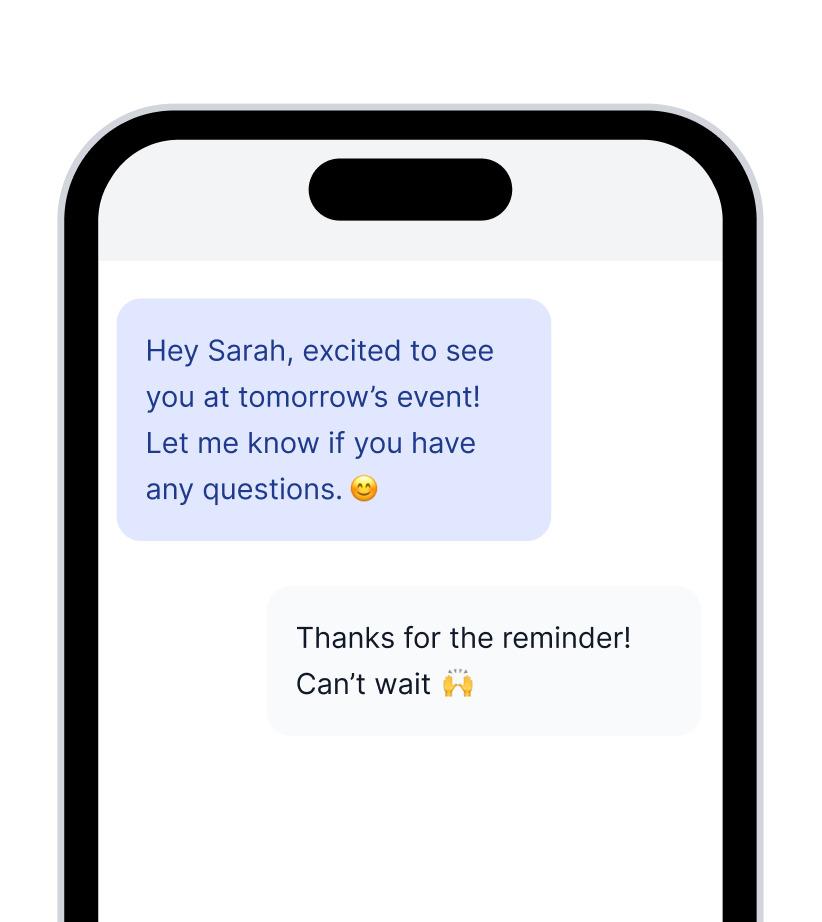
Text messages have a 98% open rate compared to 25% for email, and are typically read within 3 minutes. That means clients are far more likely to see and respond to your reminders, reducing no-shows and improving satisfaction.
SMS Text Message Appointment Reminders with Project Broadcast
Setting up text message appointment reminders in Project Broadcast is quick, scalable, and customizable. Whether you use App Flows with Calendly or a simple Event Campaign, you can build a professional reminder system that keeps your schedule on track and your clients engaged.
Sign up for Project Broadcast to get started today! /pricing/